Few internet problems are more irritating than a connection that works for ten minutes, disappears during a video call, and then returns as if nothing happened. If you are wondering why does WiFi keep disconnecting, the answer usually lies with the wireless signal, the router or the device itself. Sometimes an internet-service interruption merely looks like a Wi-Fi failure.
Instead of changing every setting at once, compare devices and locations. The pattern of the dropouts often identifies the cause faster than a factory reset.
First, Find Out What Is Actually Disconnecting
When the problem happens, check your device’s Wi-Fi indicator. Has it lost the wireless network, or does it still show Wi-Fi with a “No internet” warning? A lost connection suggests signal, interference or device settings. Remaining connected without internet may indicate the router’s internet connection, modem or broadband service.
Try the network on a second device in the same room. If both disconnect together, investigate the shared network. If only one struggles, focus on that device. Next, move closer to the router. An improvement nearby points towards coverage or interference.
Weak Signal and Awkward Router Placement
Wireless signals weaken with distance and obstacles. Thick masonry, reinforced concrete, metal cupboards and multiple floors can turn a reliable connection into unstable Wi-Fi. Devices at the edge of coverage may reconnect repeatedly.
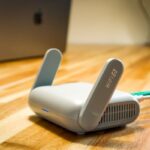
Place the router in an open, central position, preferably elevated rather than hidden behind a television. For example, if your laptop disconnects at the kitchen table but stays connected beside the router, repeat the kitchen test after moving the router out of a cabinet. This small experiment tells you more than changing multiple settings blindly.
If coverage remains poor, consider a well-positioned mesh node or access point. Router placement tips can help you choose a location before buying equipment.
Interference and the Wrong Wi-Fi Band
Neighbouring networks, Bluetooth accessories and other electronics share wireless spectrum. Interference is particularly common on 2.4 GHz. It may explain why Wi-Fi drops out more often when nearby homes have more devices active.
If your router offers both, test the 2.4 GHz and 5 GHz bands separately. The former generally reaches farther but faces more interference; the latter often works better over shorter distances. A comparison of 2.4 GHz vs 5 GHz Wi-Fi can help you decide which suits each room.
Leave wireless channel selection on Auto initially. If tests suggest interference, consult the router manufacturer’s instructions for changing channels. A 20 MHz channel width on 2.4 GHz can improve reliability in crowded environments. Change one setting at a time.
Router Problems That Cause Repeated Dropouts
Restart and Inspect the Hardware
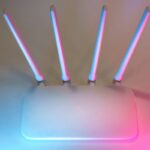
Routers sometimes develop temporary software glitches. Restart yours using its power control, then allow it to reconnect fully. If you have a separate modem, follow the manufacturer’s restart sequence. Everyone using the connection will be briefly interrupted.
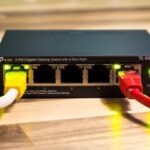
Ensure cables are securely fitted and ventilation openings are clear. Overheating or an unreliable power supply can cause unexpected reboots. Watch the router lights when Wi-Fi disconnects: if they cycle off and on, note the timing.
Update Firmware Before Considering a Reset
Check the router’s management interface or app for firmware updates, which may fix stability bugs and security problems. Follow the manufacturer’s instructions and do not interrupt installation. For mesh networks, also check individual nodes.
Save factory reset for last. It can erase network names, passwords and custom settings. Record configuration details beforehand, and ask your provider before resetting provider-managed equipment.
When Only One Phone or Laptop Disconnects
A single troublesome device usually needs device-level troubleshooting. Restart it, forget the saved Wi-Fi network and reconnect with the correct password. If a VPN is active, temporarily turn it off to distinguish an internet-access issue from a wireless disconnection.
On Windows, check operating-system and Wi-Fi adapter driver updates. Some adapters have power-management settings that allow them to be switched off to save energy, which can contribute to disconnects after sleep or on battery power.
On phones and tablets, install available system updates and test another Wi-Fi network. If wireless disconnects everywhere, the device itself may be at fault. A guide to resetting network settings can help you understand the consequences before taking that more disruptive step; it may remove saved Wi-Fi credentials.
What If Wi-Fi Stays Connected but the Internet Stops?
If your Wi-Fi indicator remains visible while webpages stop loading, check a device connected by Ethernet, if possible. If wired and wireless devices lose internet together, investigate broadband status, the modem and potential provider outages.
A more technical check is to contact your router’s local gateway address during an outage. If the router responds but internet destinations do not, the local network may be intact. Some equipment blocks diagnostic requests, however, so a failed test alone proves little.
A Practical Troubleshooting Order
Start with two devices, check whether Wi-Fi or internet access disappeared, move nearer the router, and test another frequency band. Next restart the affected device and router. Only then investigate firmware, drivers, power settings and service outages. This sequence isolates likely causes without introducing unnecessary changes.
Keep a short record of the room, device, time and router lights during each dropout. A repeatable pattern is far more useful for router troubleshooting than saying the connection is “sometimes bad.”
Frequently Asked Questions
Why does my Wi-Fi disconnect every few minutes?
Common causes include weak signal, wireless interference, router instability, adapter driver issues and power-saving behaviour. Check whether two devices disconnect together and whether moving nearer the router helps.
Why does Wi-Fi keep disconnecting on my phone but not my laptop?
The phone may have a saved-network problem, software issue or different support for the router’s wireless bands. Restart it, reconnect, install available updates and try a different network.
Can too many devices make Wi-Fi disconnect?
Heavy use can cause congestion, slowdowns and unreliable performance, especially on older equipment. It does not automatically mean devices should disconnect. Check whether problems coincide with busy periods or particular devices consuming bandwidth.
Should I replace my router if Wi-Fi keeps dropping?
Not immediately. Test devices and rooms, restart the router, inspect ventilation and power, and install available updates. Replacement makes more sense if persistent faults continue after these checks.
Find the Cause Before Replacing Equipment
Recurring wireless problems rarely improve through random setting changes. First separate a dropped wireless link from a lost internet connection, then compare devices and locations. Whether the culprit is interference, router hardware or one laptop’s settings, a structured diagnosis helps you choose a lasting fix—and confirm that it worked.